
A short prompt guide for Seedream 4.5
How to get the most out of Seedream 4.5 in the Maejik studio — text-to-image, edits, reference-based generation, and multi-image input.
Seedream 4.5 is one of the strongest image models on Maejik. It handles photoreal scenes, legible text, complex compositions, and sequences of related images — but it rewards prompts that are specific without being ornate. Here’s how to get the most out of it.
The five things that matter most
1. Describe the scene in natural language. Subject, action, environment. Add style, colour, lighting, or composition if aesthetics matter. Coherent sentences beat comma-separated keyword lists.
- Good: An old fisherman mending a net on a wooden dock at sunrise, low golden light skimming the water, painted in the loose brushwork of a Turner seascape.
- Avoid: Fisherman, net, dock, sunrise, Turner painting.
2. State the purpose if there is one. Logos, posters, infographics, product shots — say so up front.
- Good: Design a logo for an independent coffee roaster. The logo features a stylised moth resting on a coffee bean. The business name “NIGHTWING ROASTERS” is set in a small-caps serif beneath it.
- Avoid: Something with a moth and a coffee bean, maybe the words Nightwing Roasters.
3. Use double quotes for text you want rendered. Seedream 4.5 is unusually good at text, but it needs to know what’s text and what’s description.
- Good: A minimalist event poster with the headline “Late Show: 9pm Friday” in a bold condensed sans.
- Avoid: A minimalist event poster with the headline Late Show 9pm Friday.
4. Name the style precisely, or reference an image. “Cinematic” is vague. “Shot on a 50mm lens at f/1.8, Kodak Portra 400 colour grade” is not. If words fail, attach a reference.
5. Be concise. Don’t pile on ornate vocabulary. Seedream 4.5 understands prompts well enough that padding hurts more than it helps. Say the thing, then stop.
Text-to-image
For complex scenes, describe every element you care about. Seedream 4.5 will place them — it won’t invent the arrangement for you.
Prompt: A cosy reading nook by a rain-streaked window. A worn leather armchair holds a half-open novel face-down on its arm. On the side table: a ceramic mug of tea with steam curling from it, a pair of reading glasses folded beside it, and a small brass lamp throwing a warm pool of light onto the floorboards. A tabby cat is asleep on a tartan blanket at the foot of the chair. In the background, a tall bookshelf fades into soft focus. Late-afternoon light, moody but warm.
It’s also strong on dense, information-rich visuals — diagrams, charts, infographics. Use proper terminology and specify the layout.
Prompt: A hand-drawn chalkboard illustration explaining the water cycle. Label each stage — “Evaporation”, “Condensation”, “Precipitation”, “Collection” — with arrows showing the flow between them. Keep the style loose and educational, like a primary-school science classroom.
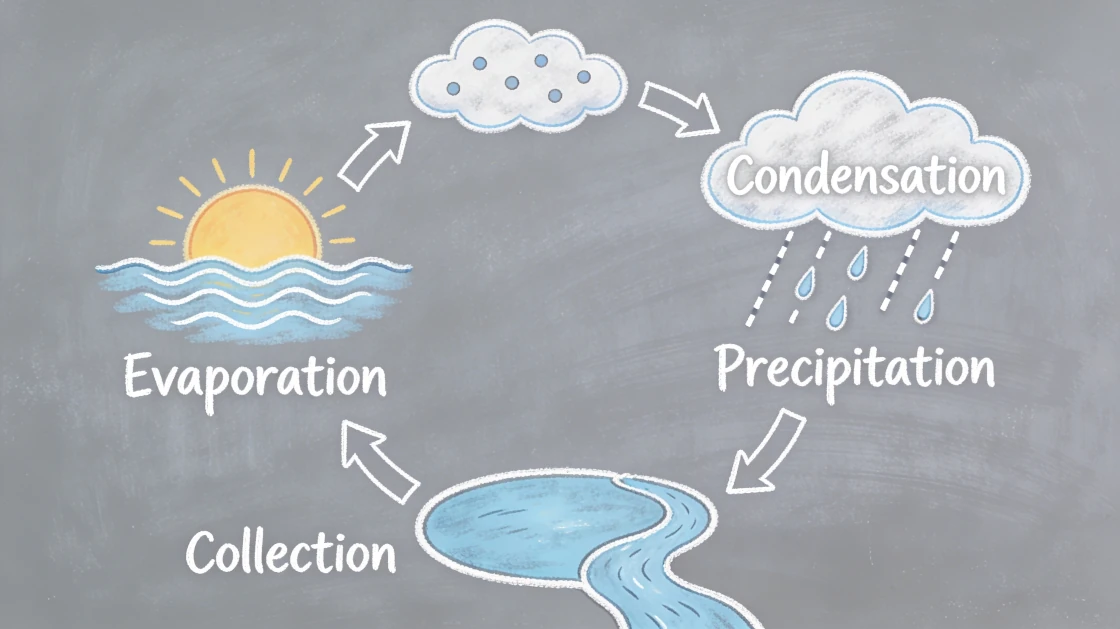
Image editing — edit any past generation
In the studio, click any past generation to use it as the input for your next prompt. From there, Seedream 4.5 handles four kinds of edits: addition, deletion, replacement, modification. Keep the instructions unambiguous, and if something should stay the same, say so.
- Add: Add a pair of tortoiseshell round glasses to the man in the photograph, keeping his expression unchanged.
- Remove: Remove the coffee cup from the desk. Keep everything else as is.
- Replace: Replace the red bicycle with a matte-black vintage motorcycle, matching the same angle and lighting.
- Modify: Change the season in the scene from autumn to winter — bare branches, light snow on the ground, soft grey sky — but keep the house and its layout the same.
If text isn’t enough — say, you need to point at a specific region — upload a version with arrows, bounding boxes, or a doodle overlay, and reference it in the prompt (“place a floor lamp where the red circle is marked”). Seedream understands those visual cues.
Reference-based generation
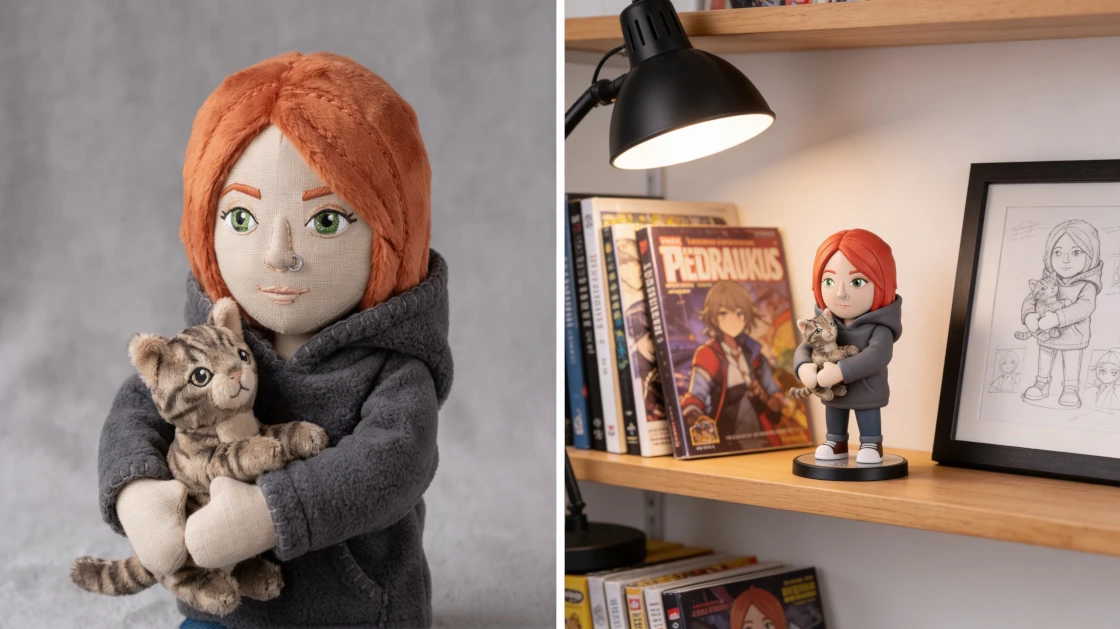
When you want Seedream to pull something specific out of an image — a character, a product, a style — attach a reference and describe two things:
- What to extract. The character’s face and outfit, the material and shape of the bottle, the illustration style.
- What to generate. The full scene you want around it — layout, lighting, composition.
Prompt: Using the character in the reference image, generate a vinyl collectible figure of them standing on a small round display base. Place the figure on a wooden shelf beside a stack of graphic novels and a framed concept sketch. Warm desk lamp lighting, shallow depth of field, photoreal.
This is also how you turn sketches into final images. Upload a floor plan, wireframe, or hand-drawn prototype, and describe what you want rendered. If there’s text in the sketch, tell Seedream to read it: “Generate based on the text labels in the image.”
Multi-image input
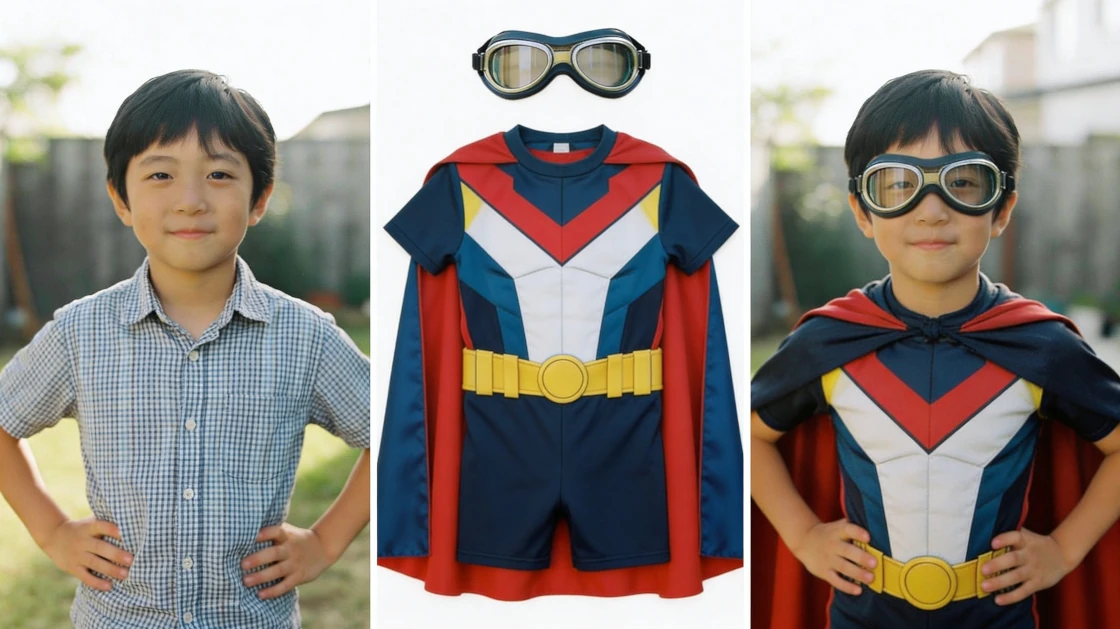
Attach more than one reference and tell Seedream which to pull from. Number them in the prompt — Image 1, Image 2, and so on — so there’s no ambiguity about which reference supplies what. You can mix kinds: a subject from one, a garment from another, a setting from a third.
The more references you attach, the more the prompt has to do the work of assigning each one. Be explicit — “the costume”, “the cape”, “the background” — so Seedream doesn’t have to guess.
Prompt: Dress the subject in Image 1 with the costume from Image 2, the cape from Image 3, and the goggles from Image 4. Keep the subject’s face and pose unchanged. Studio lighting, clean grey backdrop, photoreal.
A few other common shapes:
- Background swap: Put the character from Image 1 into the environment from Image 2.
- Style transfer: Render Image 1 in the painting style of Image 2.
- Product placement: Place the product from Image 1 on the surface shown in Image 2, matching the existing lighting.
If you get stuck
Hit the prompt touch-up button in the studio. It rewrites your prompt into the kind of specific, model-friendly language Seedream responds to — without changing what you asked for. Use it as a starting point, tweak from there.
Weighing 4.5 against the newer, layout-and-text-focused Seedream 5 Pro? See Seedream 5 Pro vs Seedream 4.5 for which to pick, or the Seedream 5 Pro prompt guide if you’ve already switched.
Bring a prompt and sign up — new accounts start with free credits, no card required.